How to Add Required Work to an Assignment
Learn how to define required work for a Caliche assignment and assign responsibility for completing it.
Assignment Navigation
1. Open a project
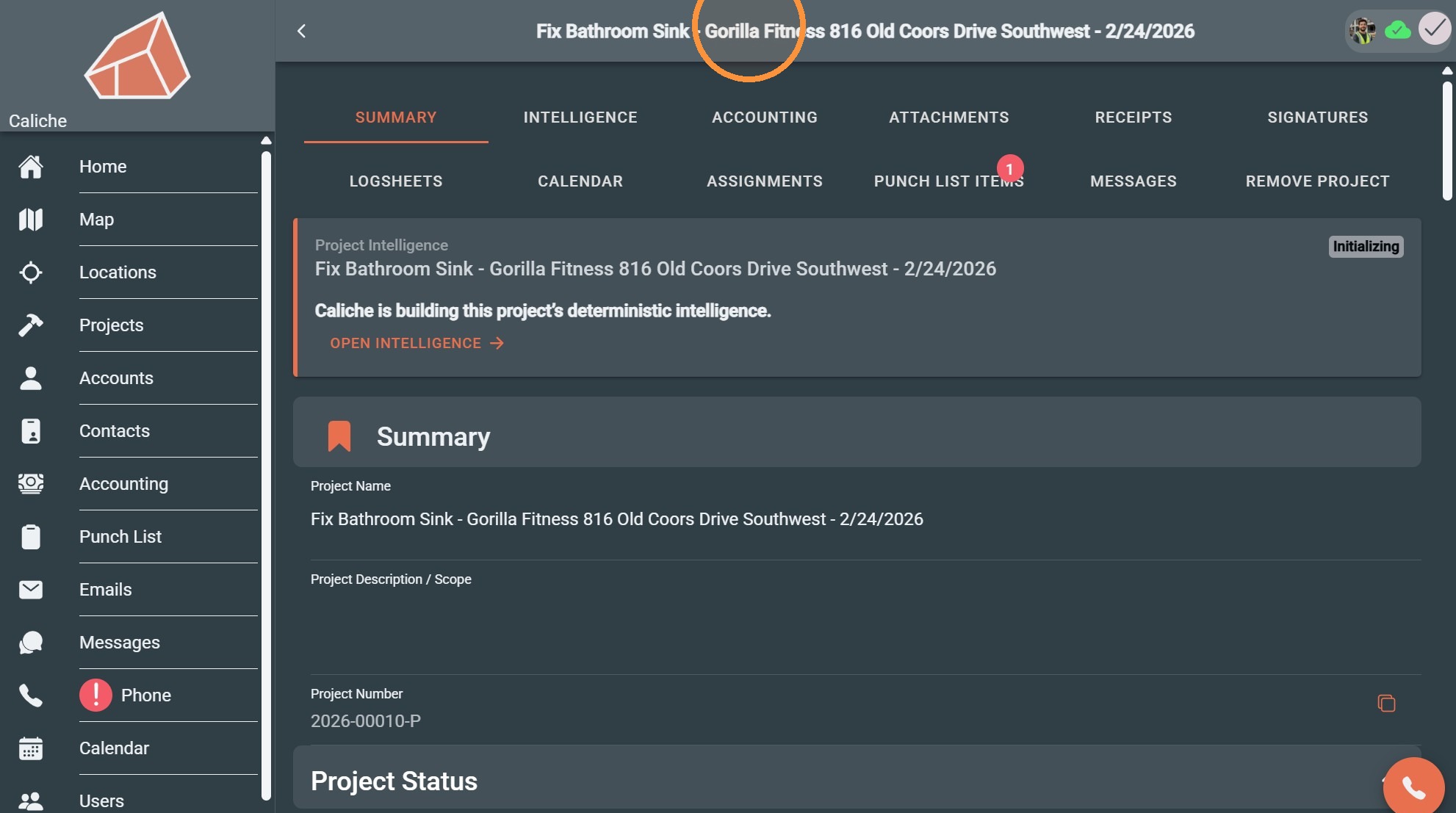
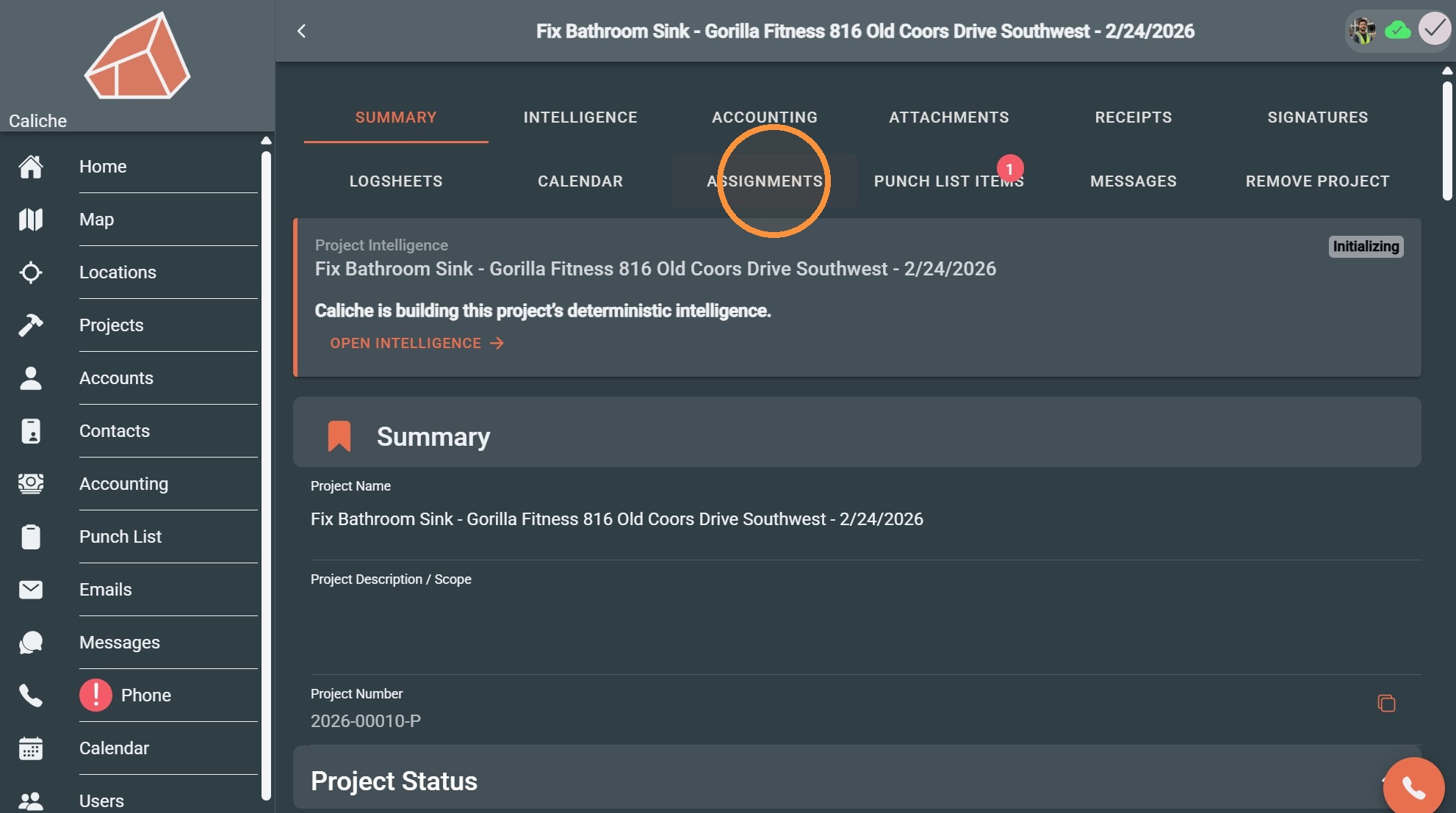
2. Click "Assignments"
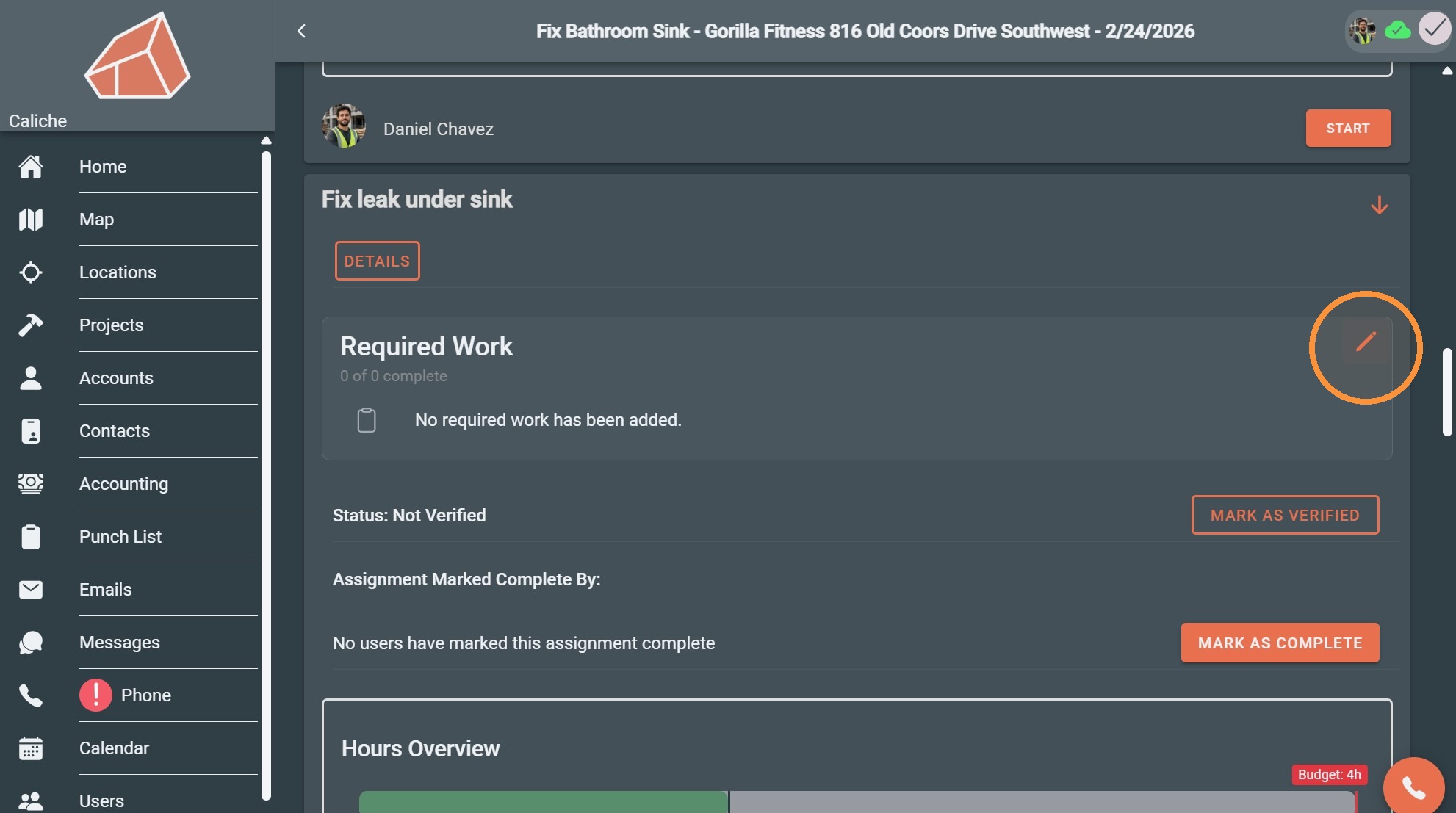
3. Find the assignment you wish to add a requirement to and click the pencil icon under Required Work
Punch List Details
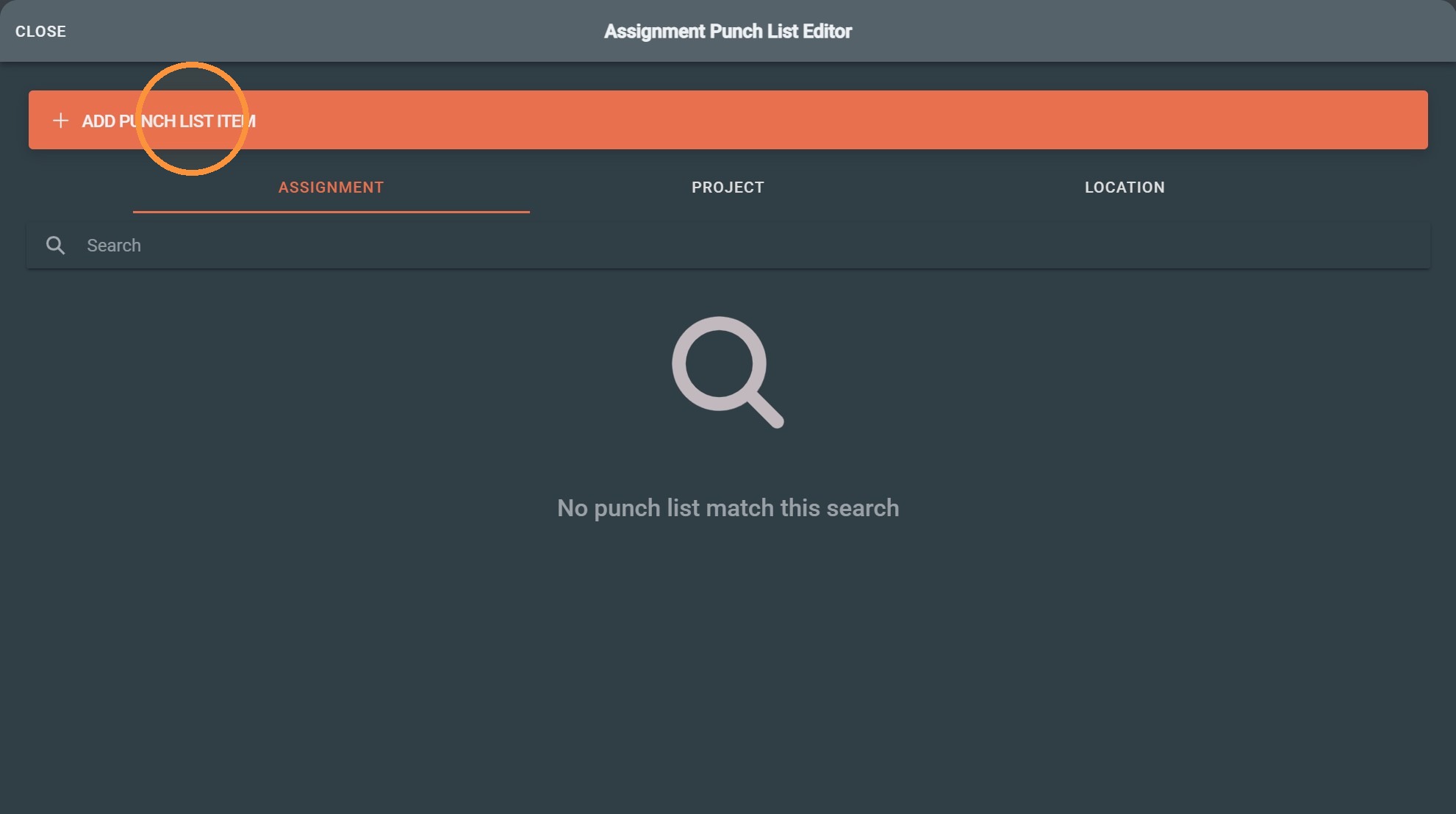
4. Click "Add Punch List Item"
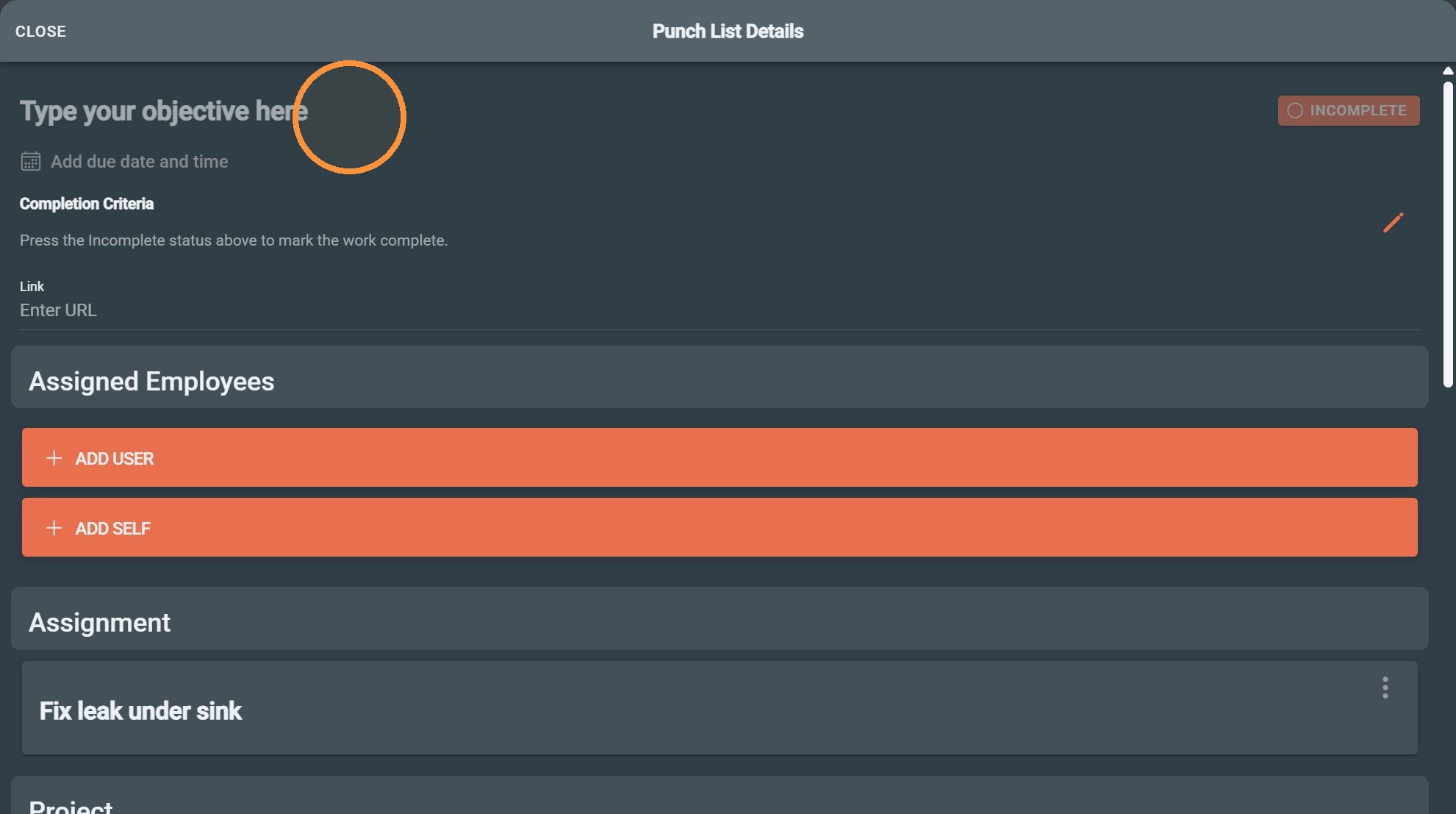
5. Click the "Type your objective here" field.
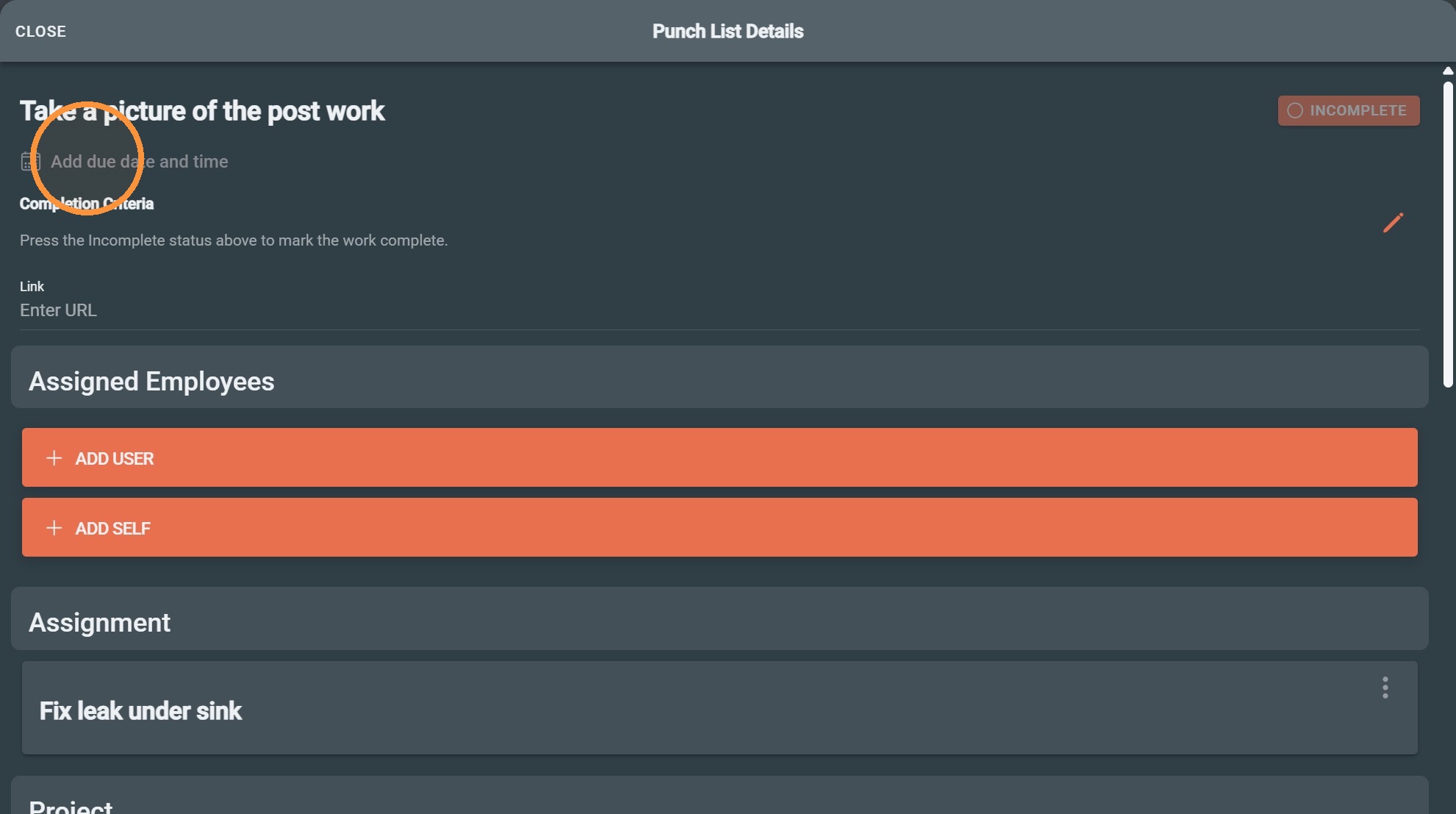
6. Click "Add due date and time"
7. Save the due date and time.
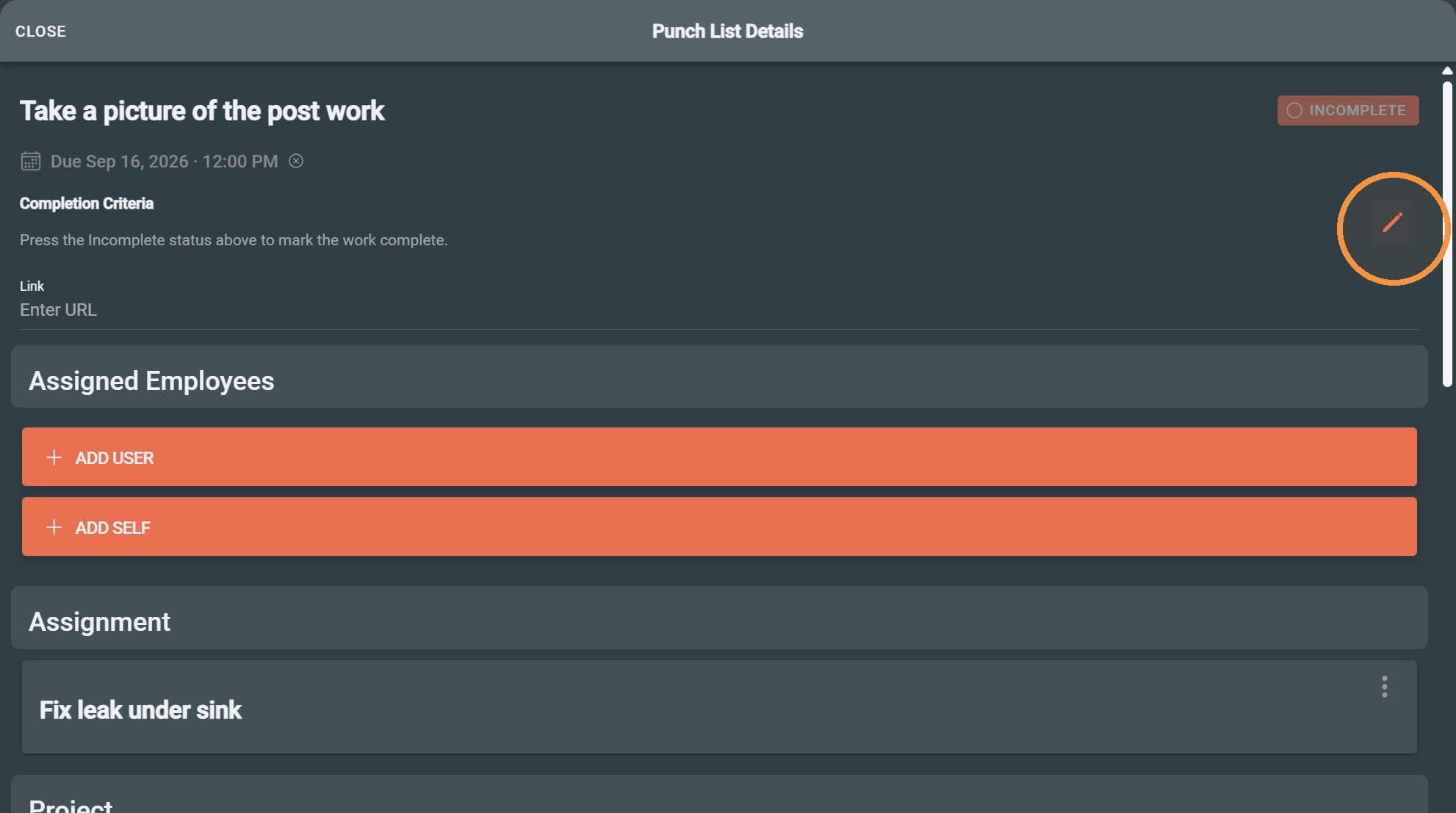
Completion Requirements
8. Open the completion method menu.
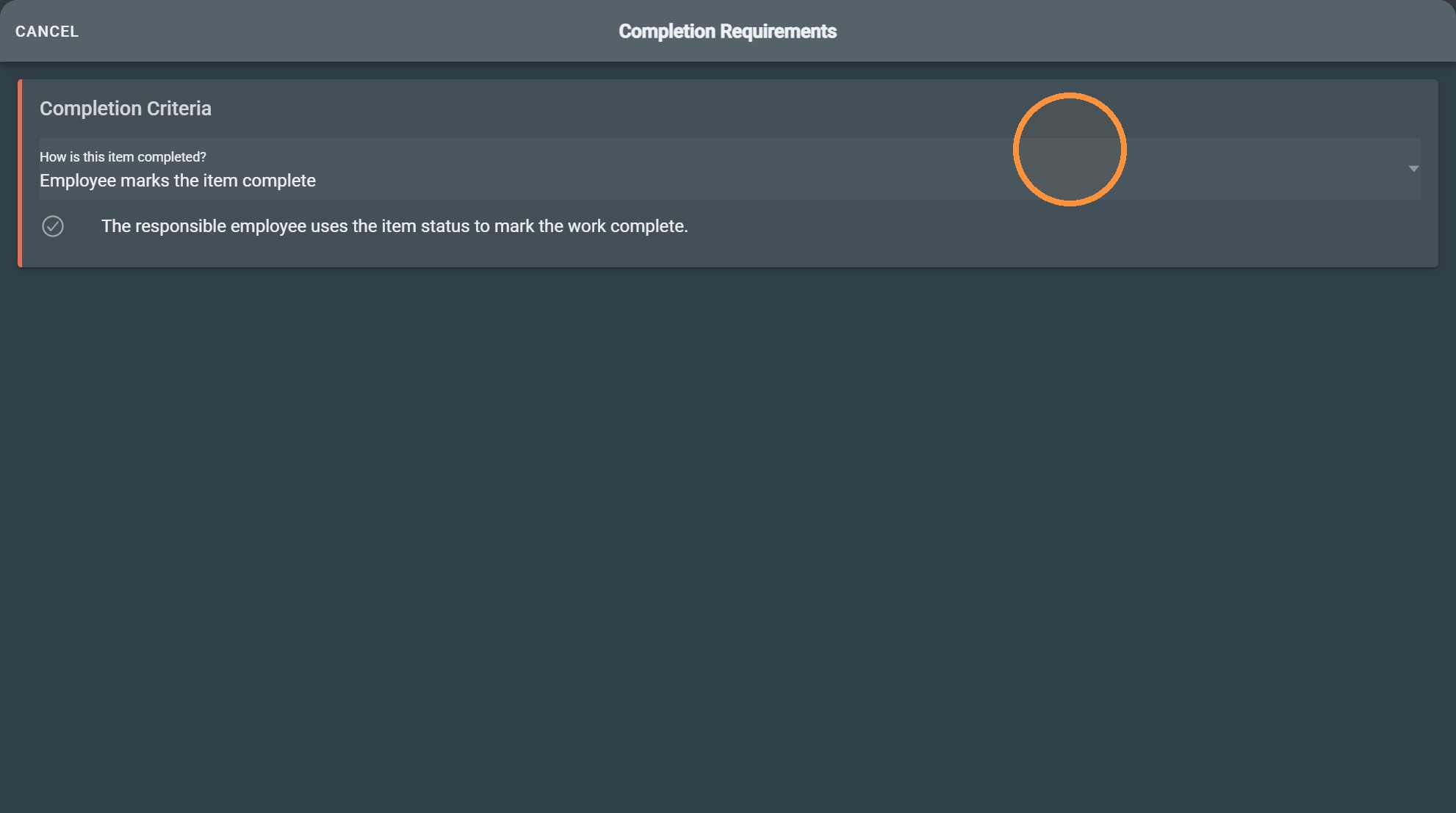
9. Click "Employee provides required photos"
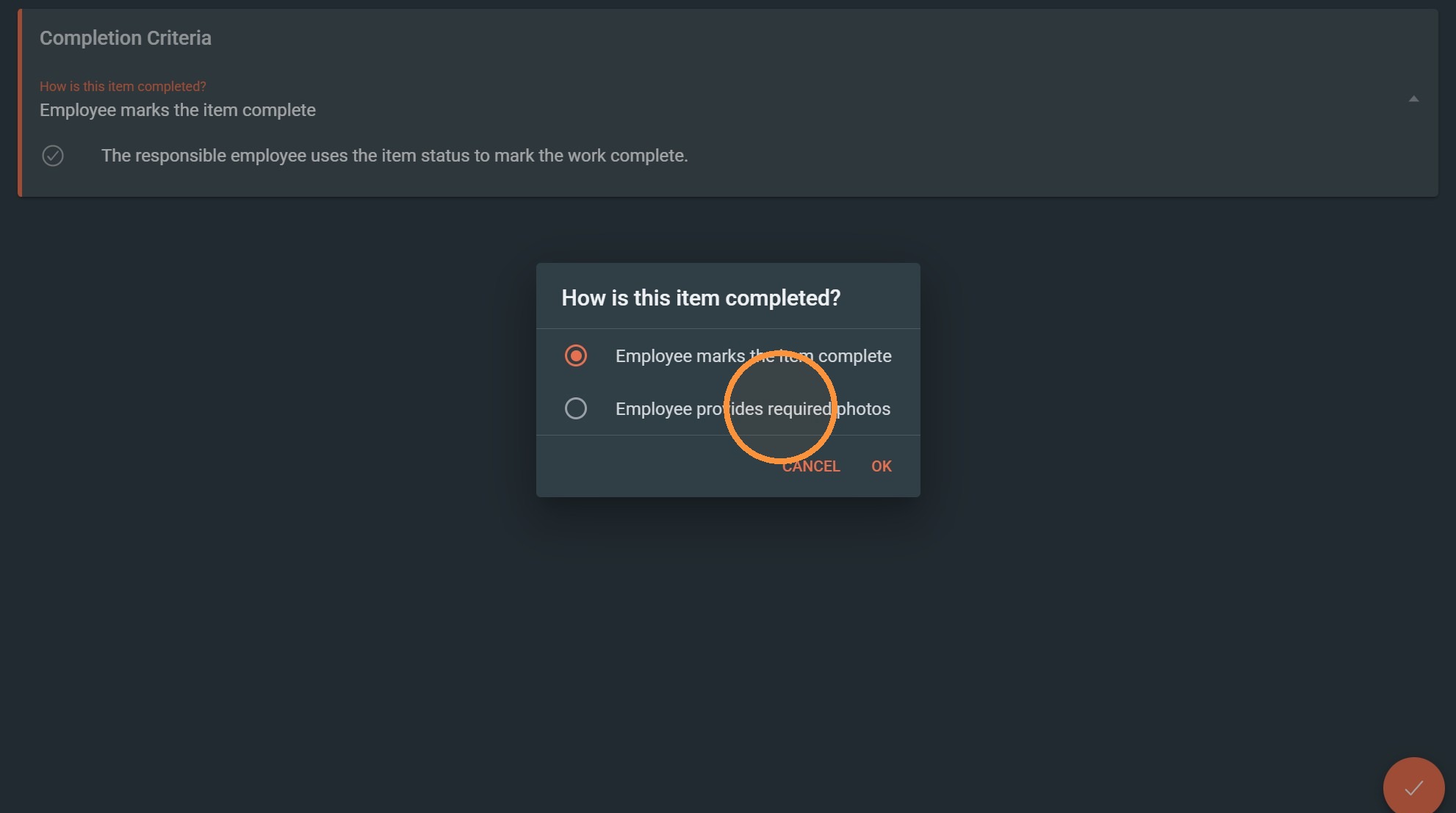
10. Click "OK"
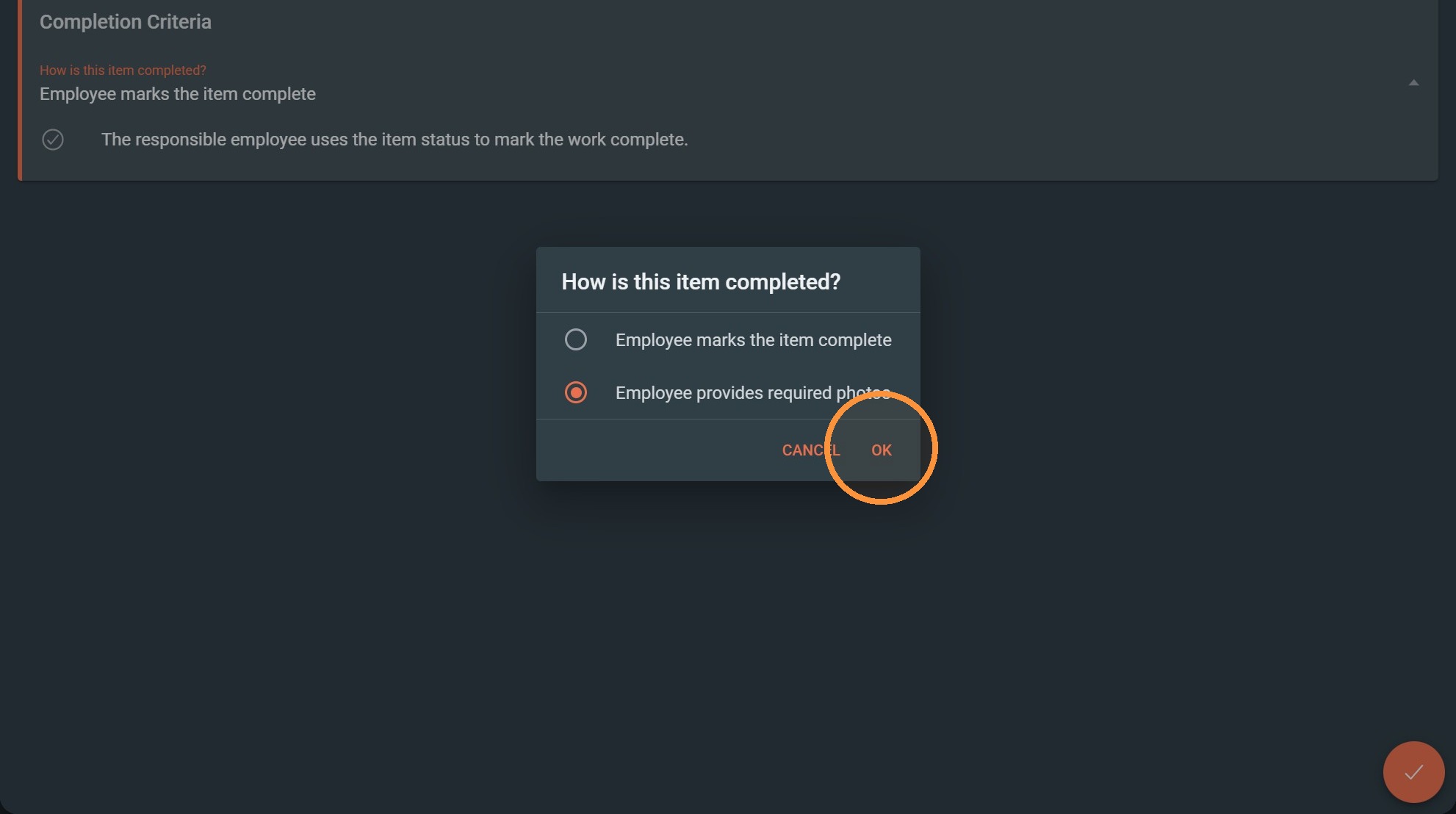
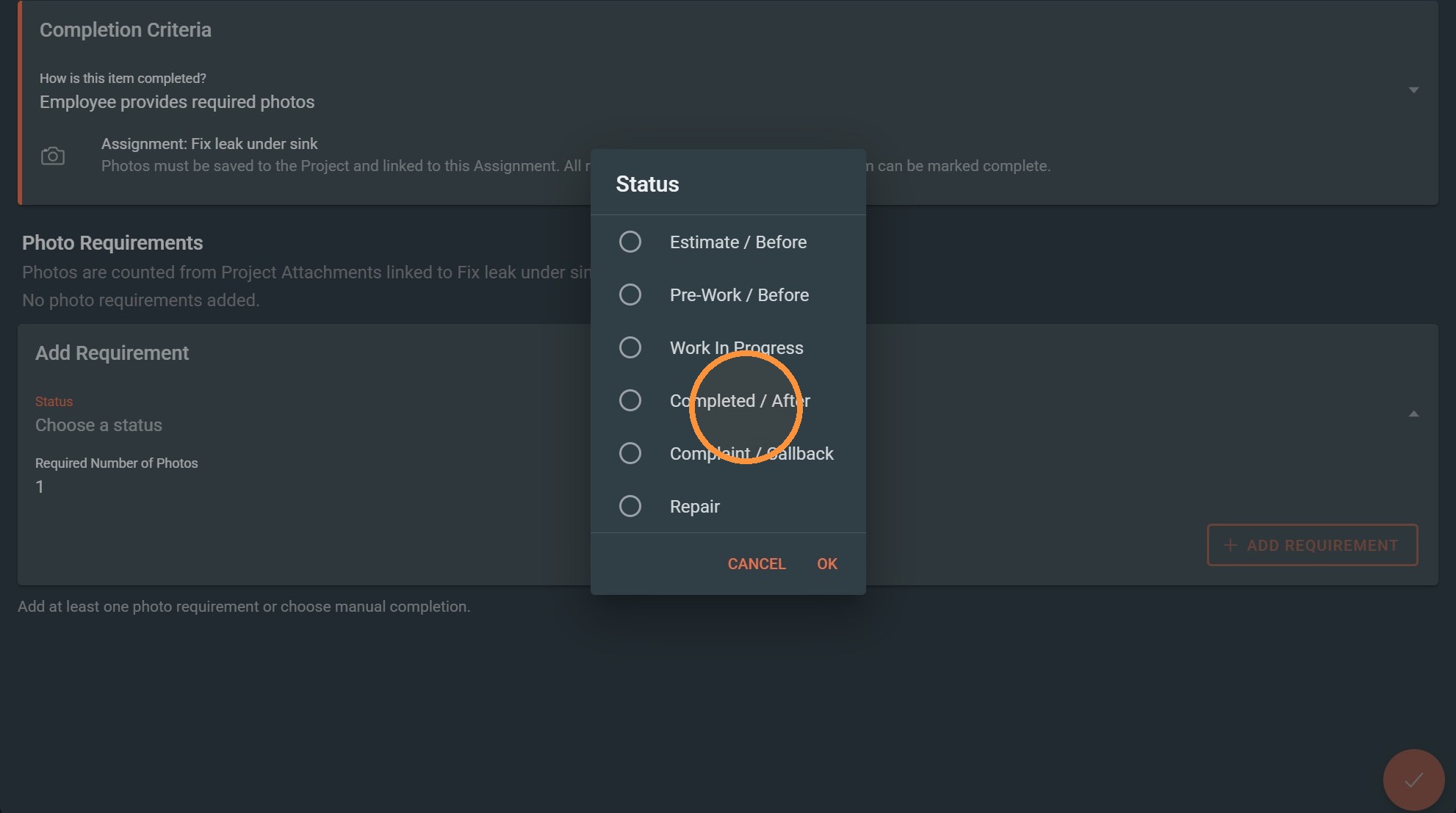
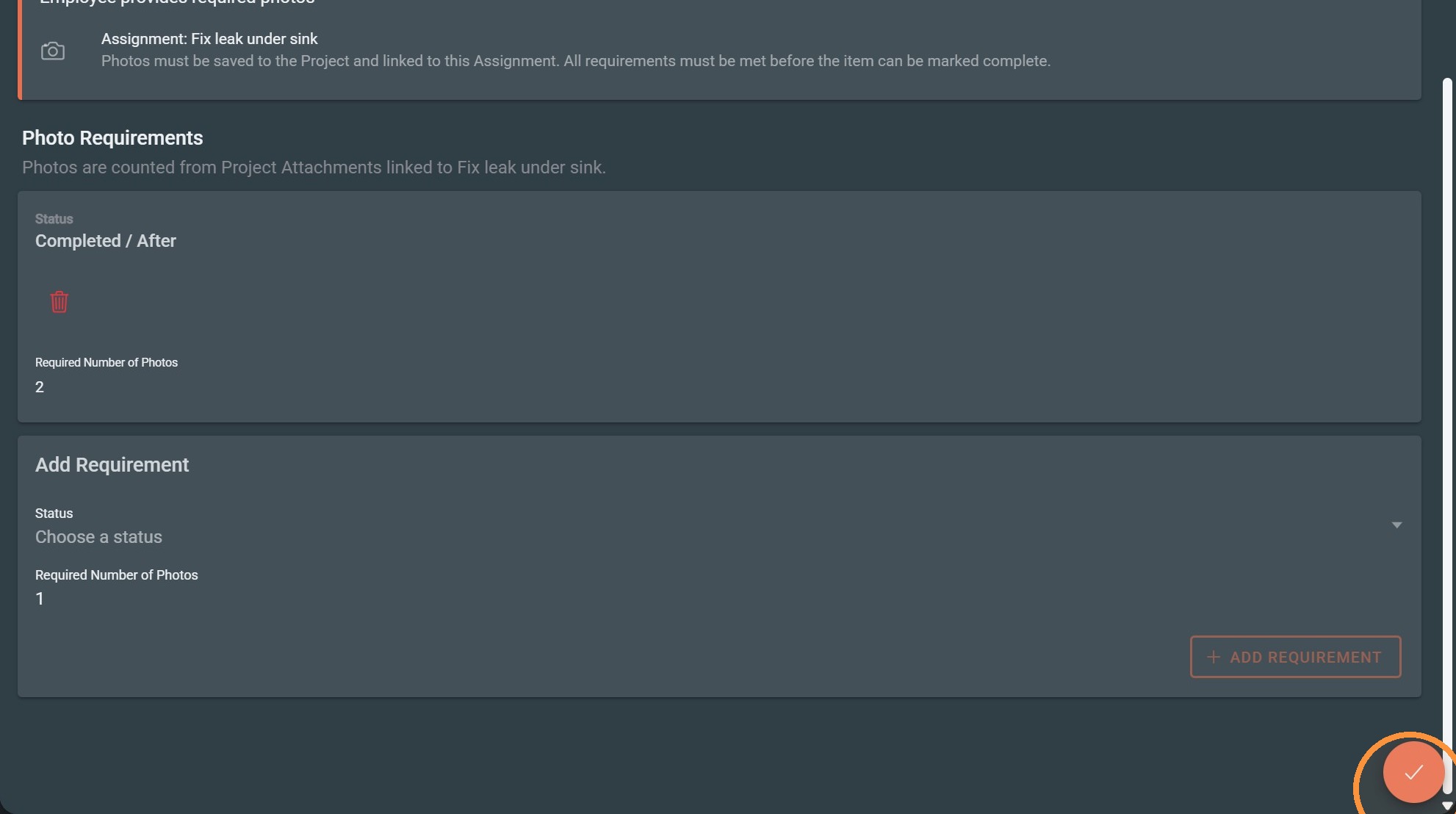
11. Open the photo requirement status menu.
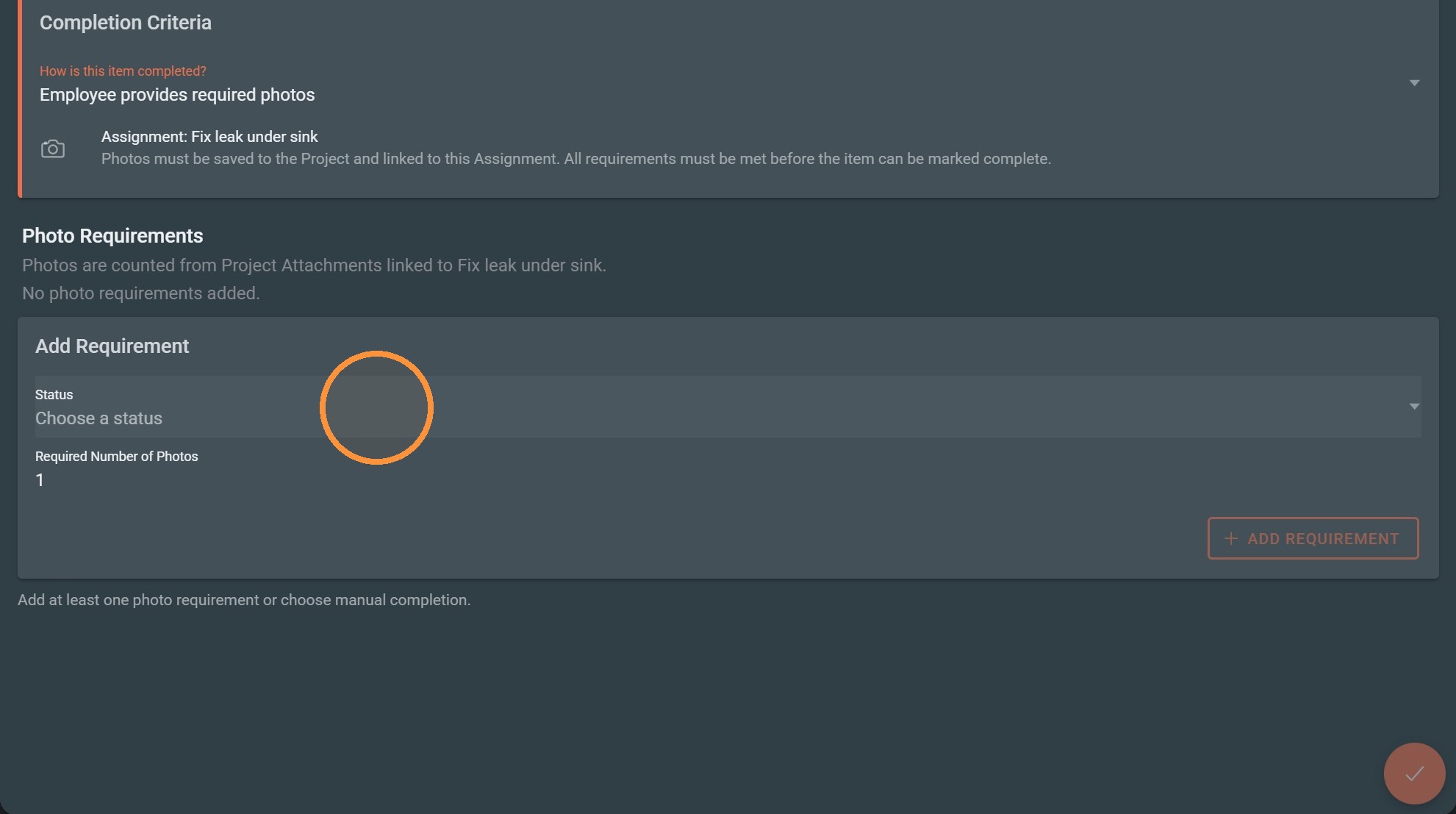
12. Click "Completed / After"
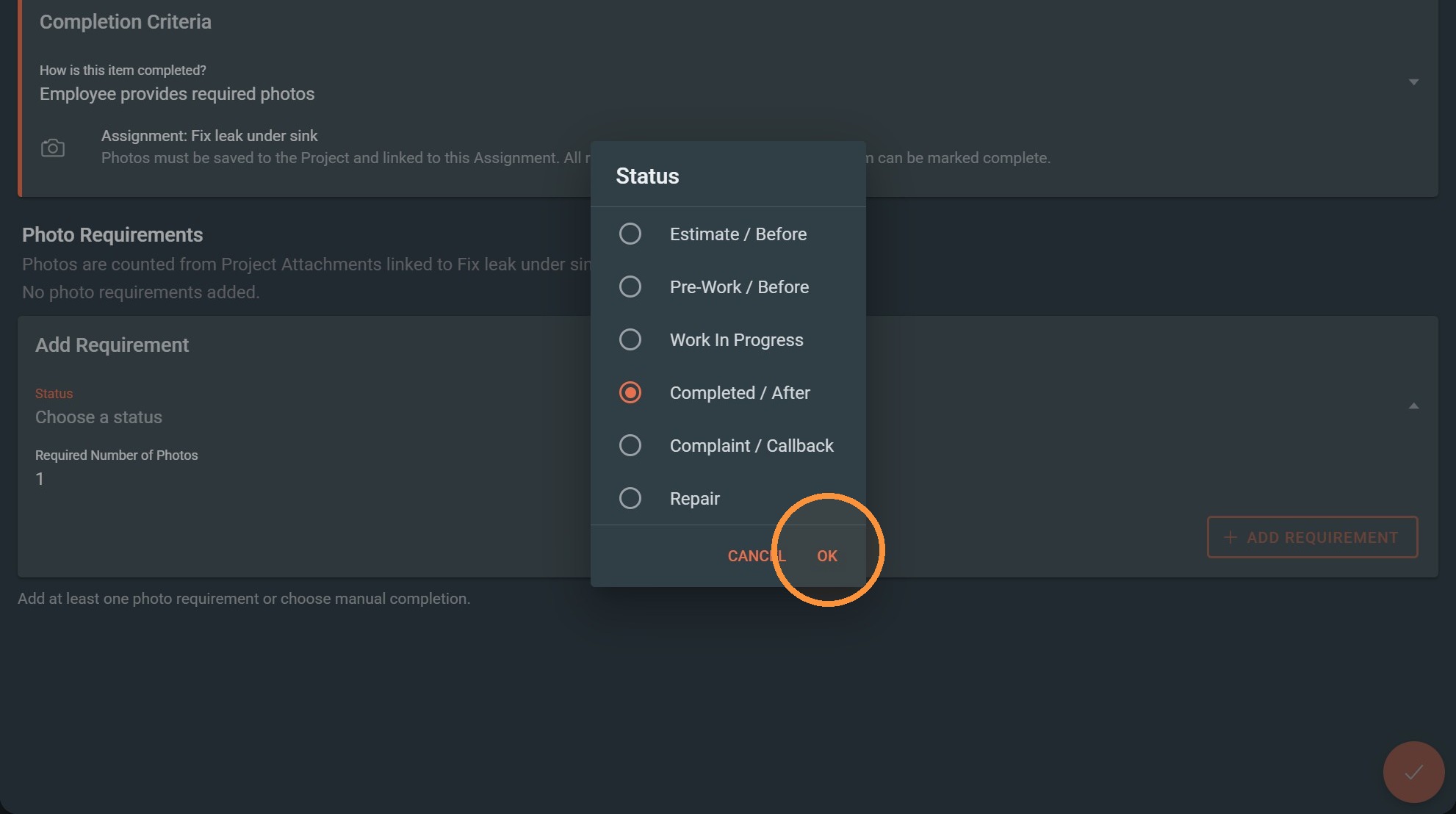
13. Click "OK"
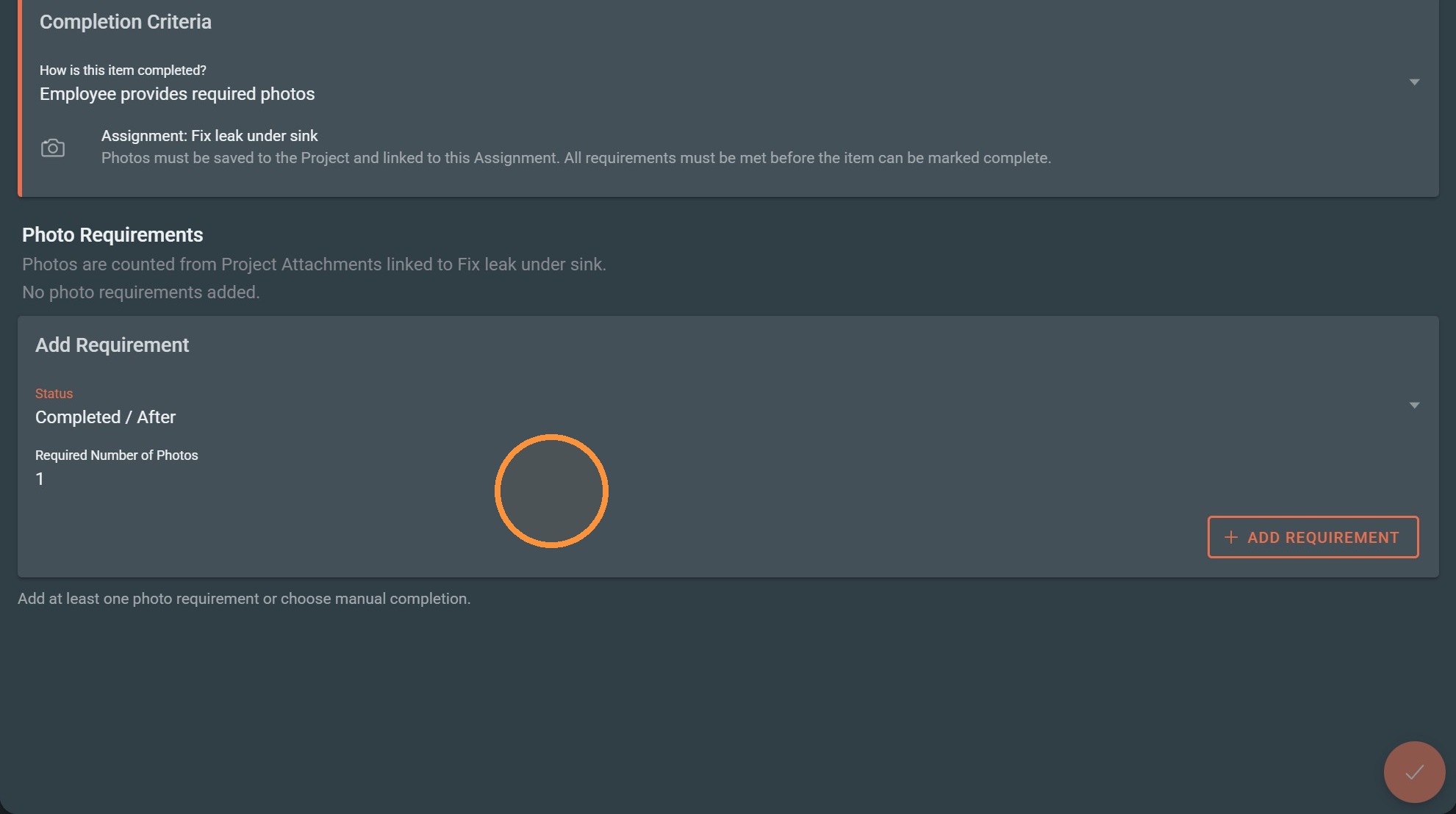
14. Set the required photo count to 2
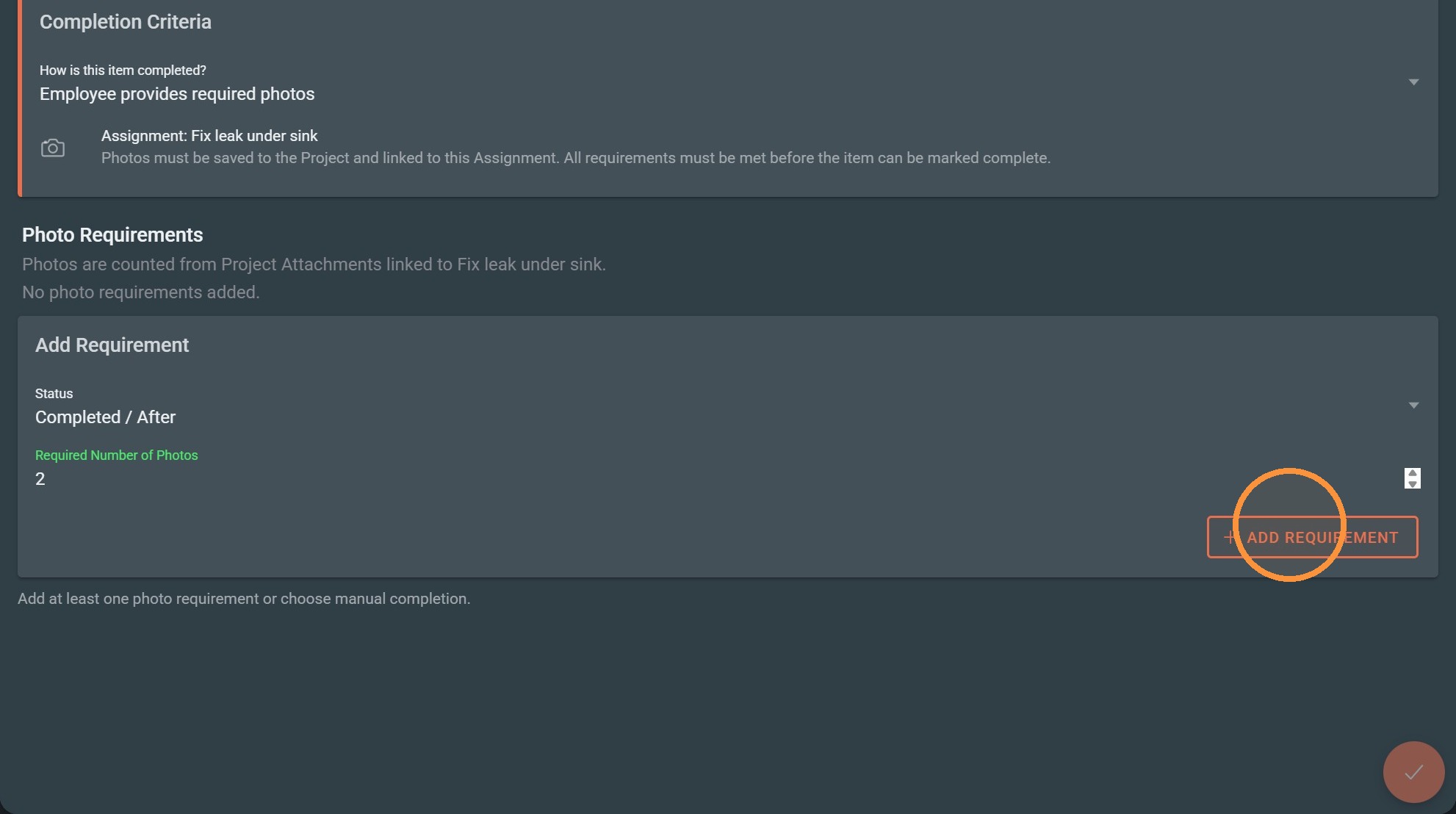
15. Add the completed-after photo requirement.
16. Save the photo requirement settings.
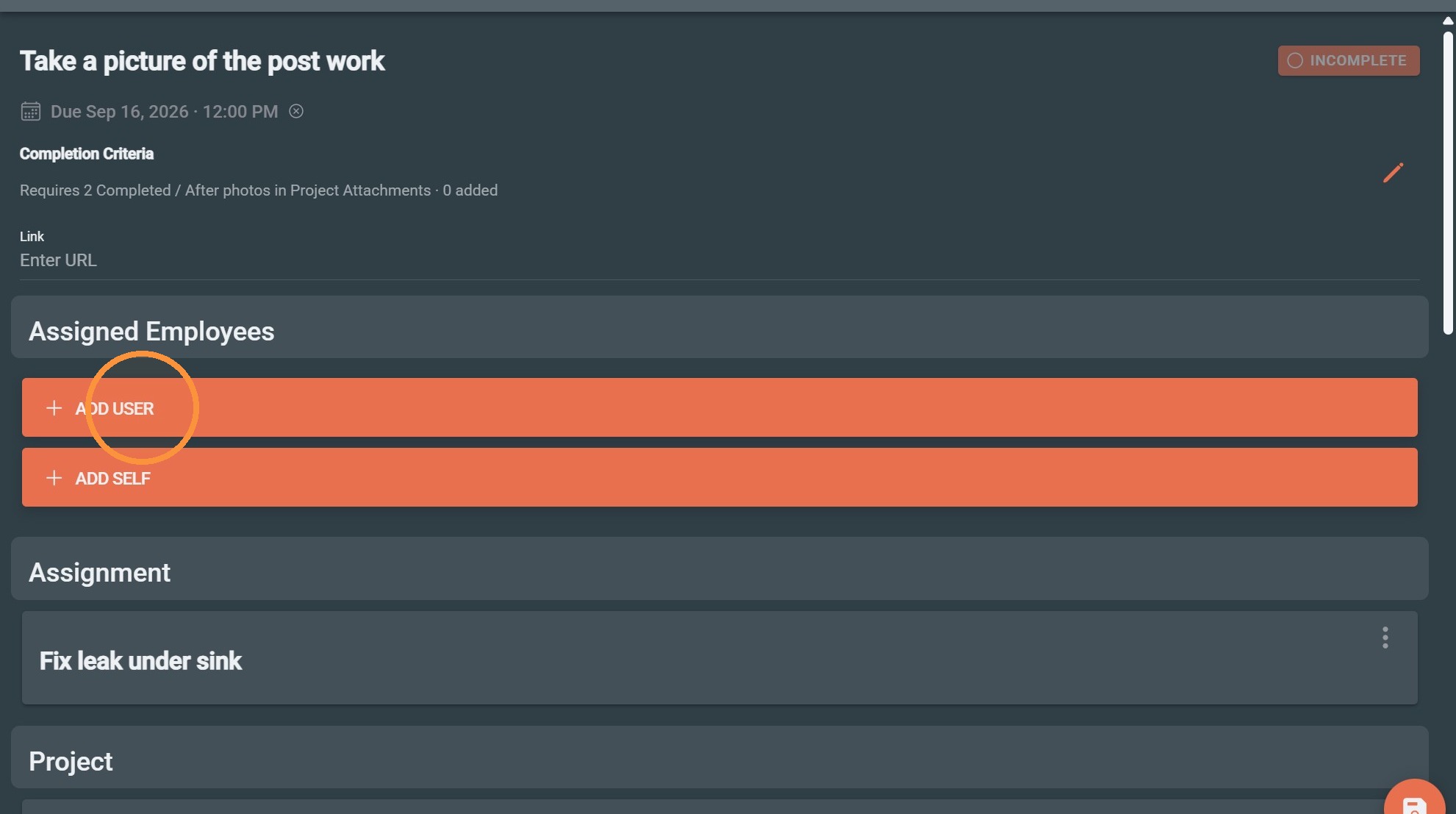
User Assignment
17. Click "Add User"
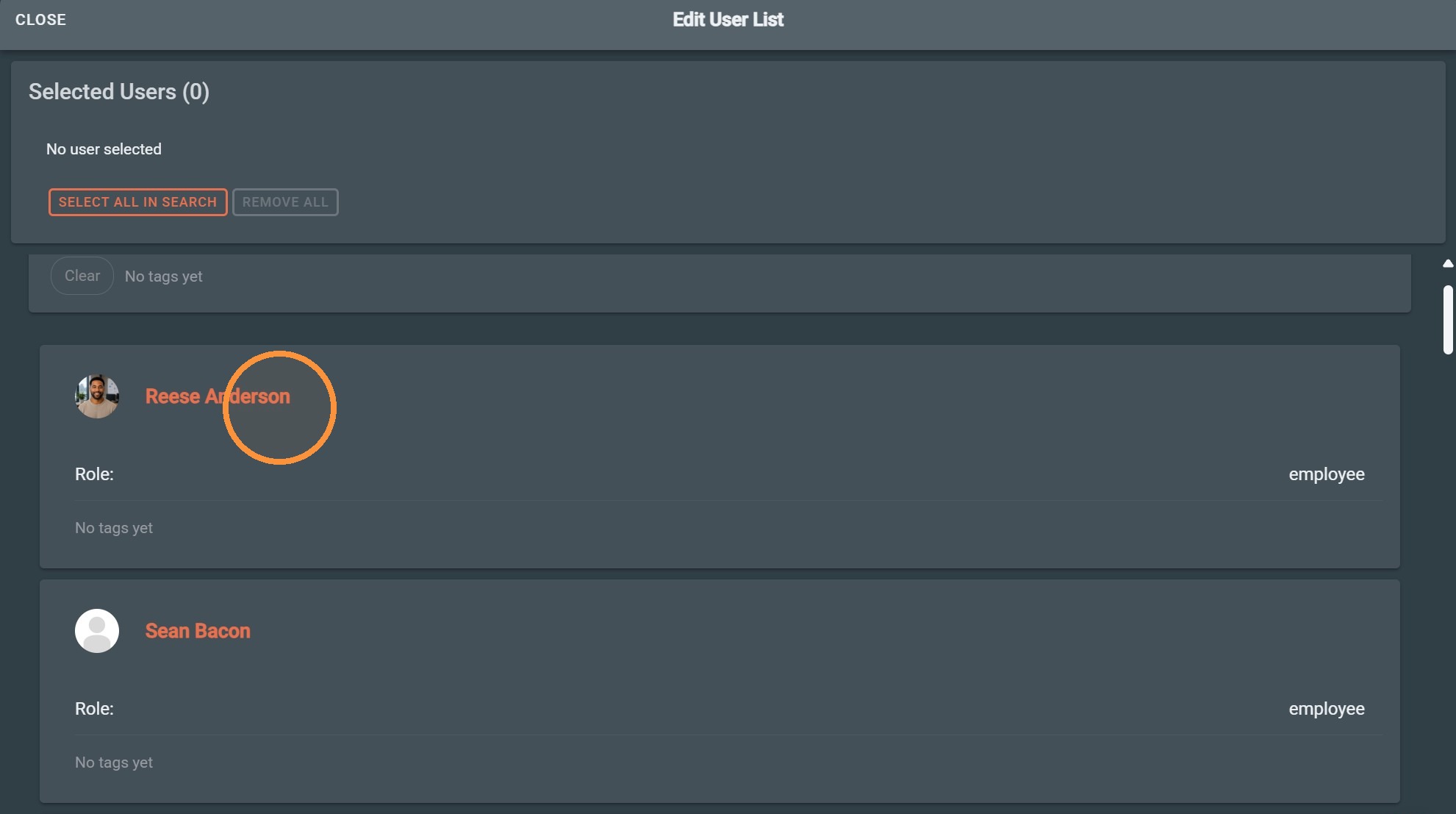
18. Select a User
19. Save the assigned user.
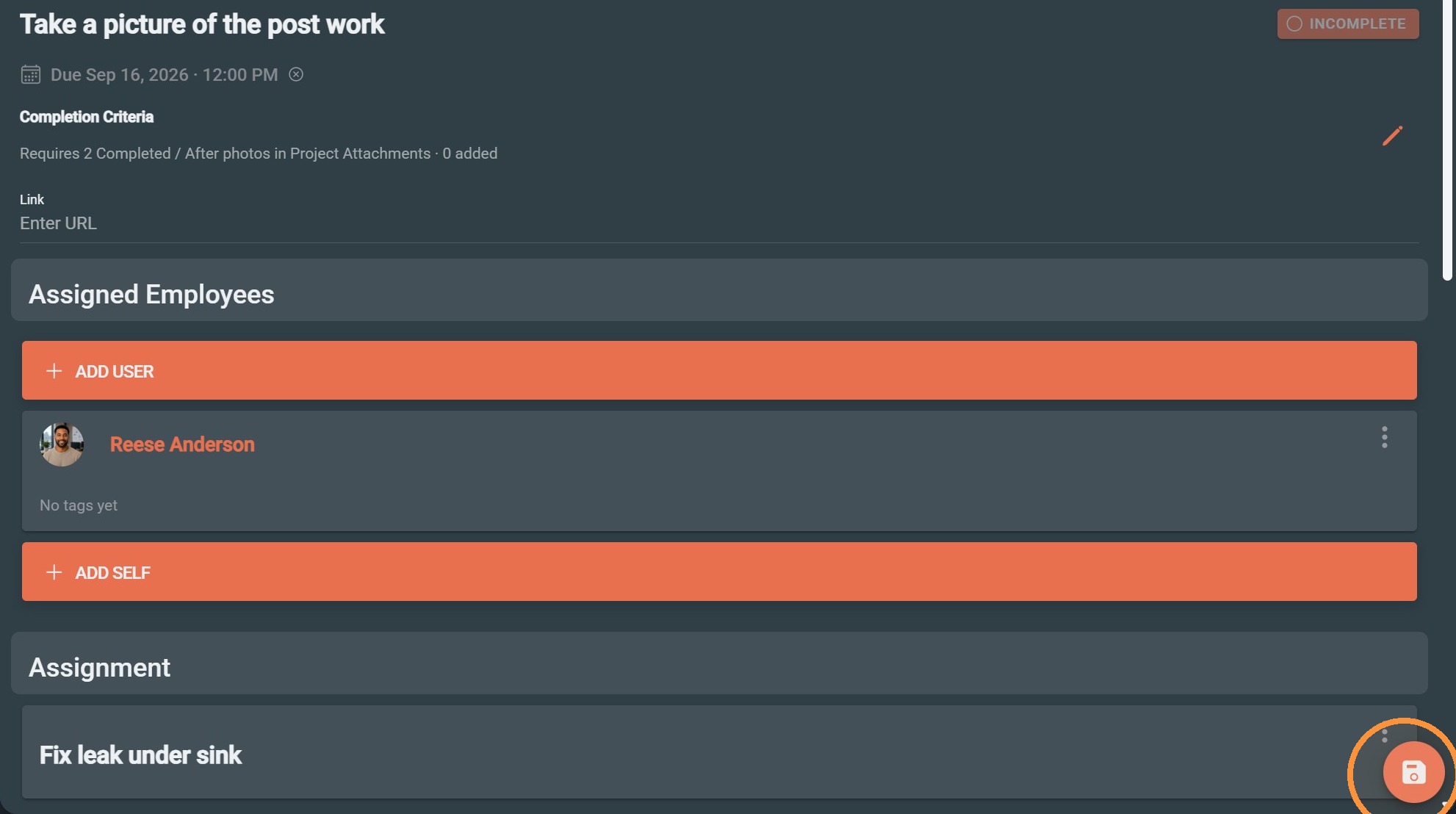
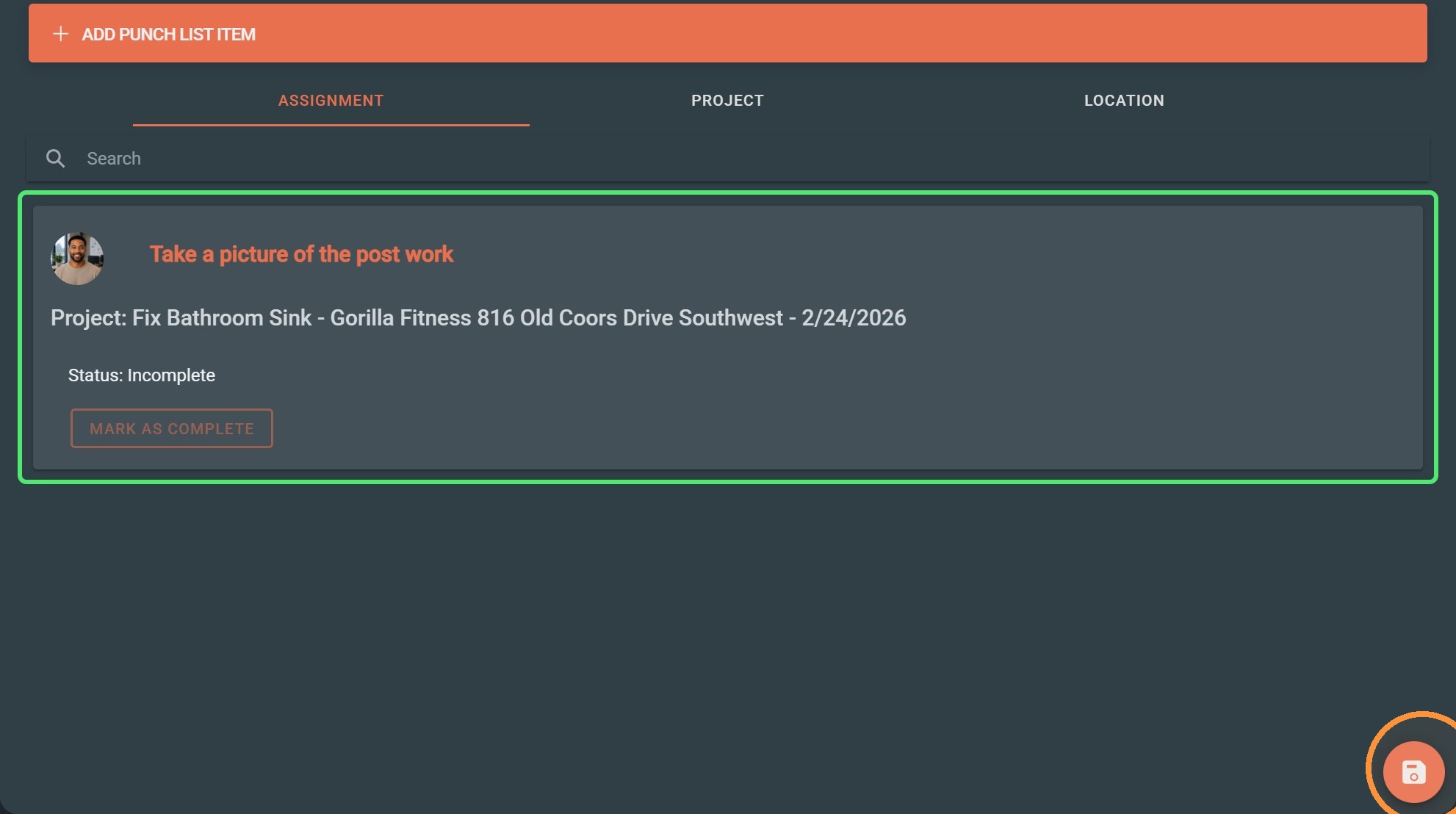
20. Save connecting the punch list to the assignment
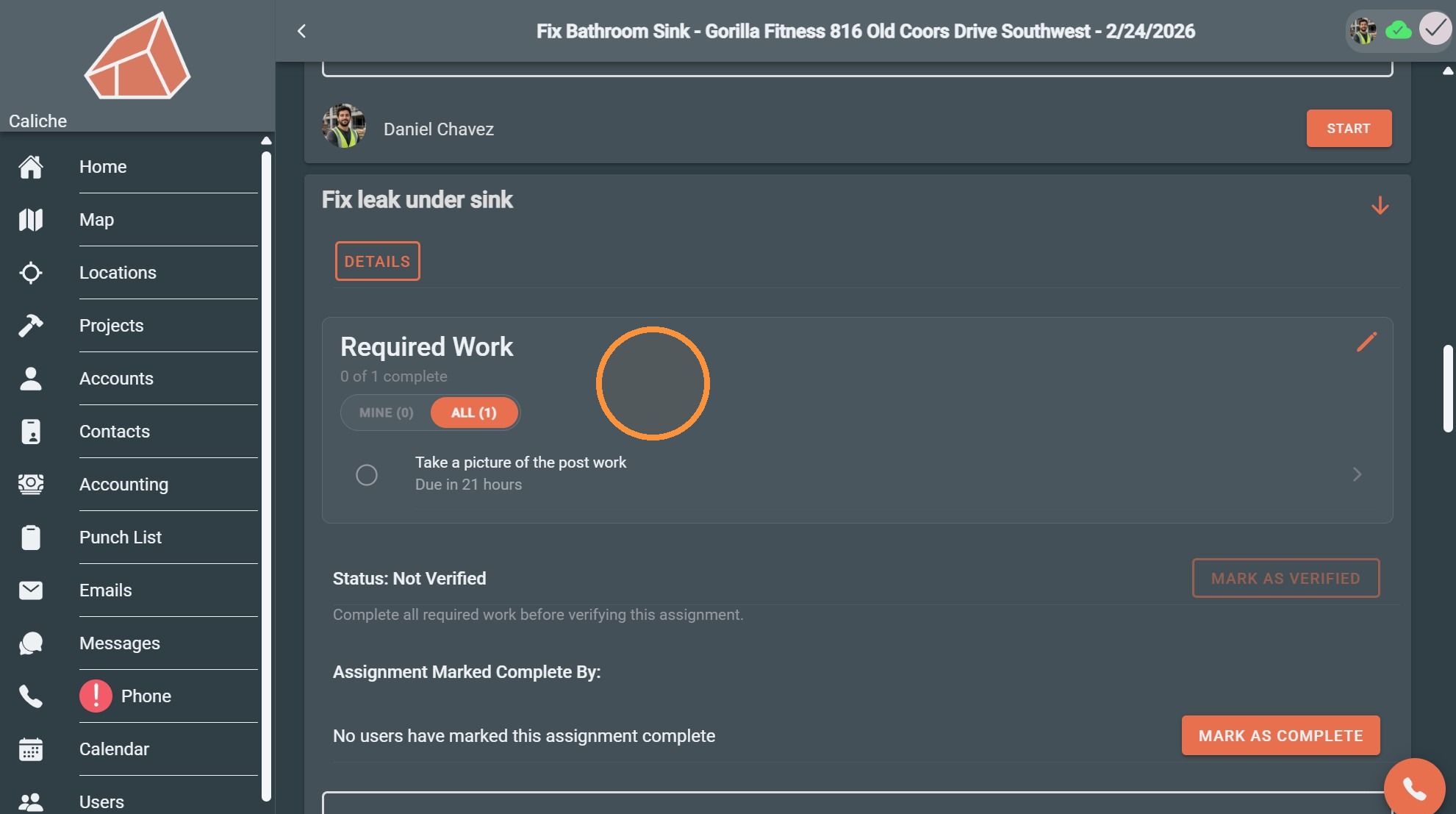
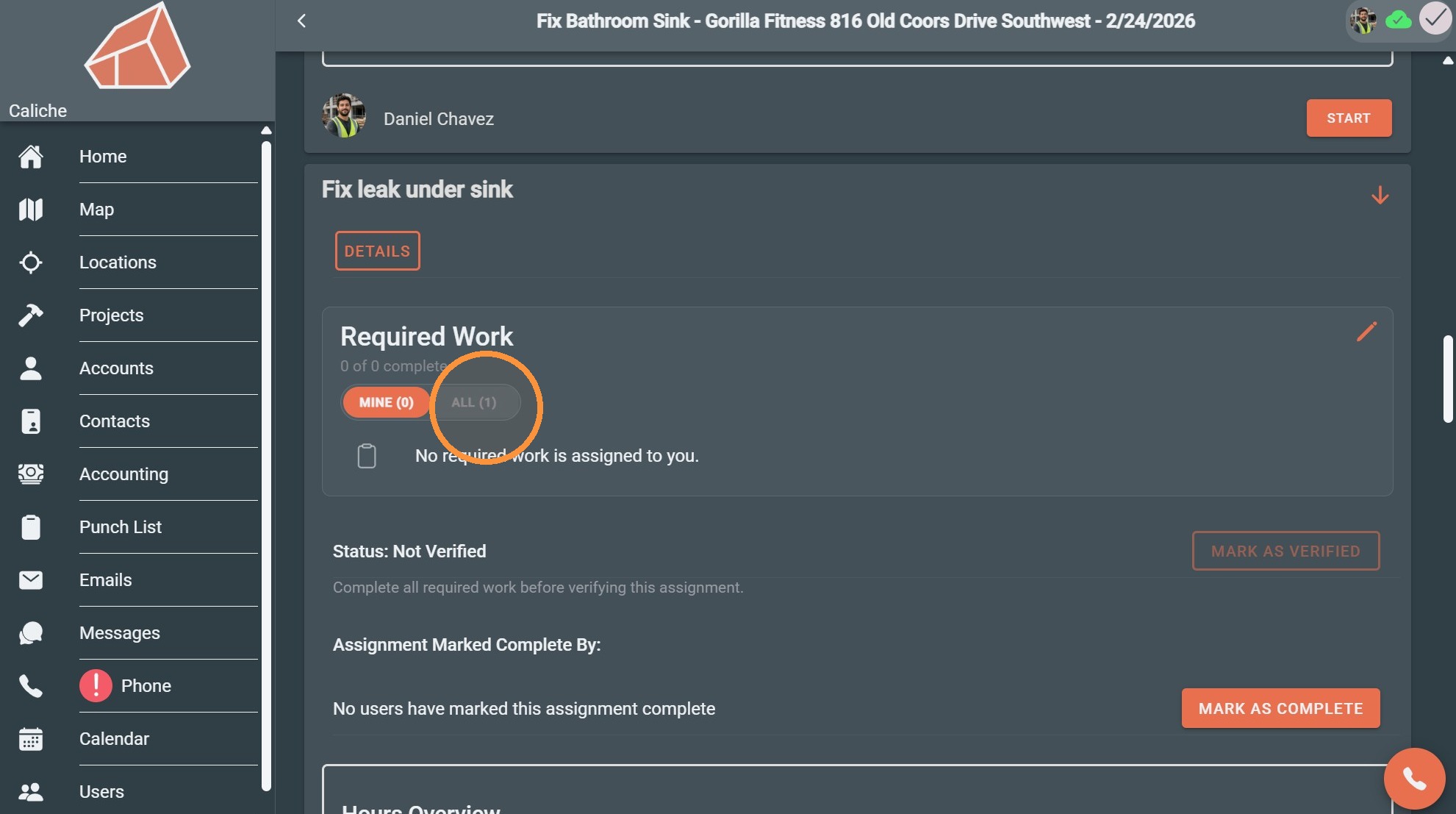
21. Click all to see all work
22.